Two groups of Skills turn one product photo into a finished still image.
- Product photos (8 styles) make the kind of photo you put on a product page: your product in a real place, on a studio set, with fruit, in a hand, or splashing in liquid.
- Marketplace listing (10 styles) make posters and listing images, often with a headline and selling points, in looks such as clean studio, color pop, dark premium, and retro print.
You upload the product photo, optionally add the details and exact wording, and choose an example you like. ChatCut generates the image. You run them from a Skill’s page in the web app or in ChatCut Desktop 0.7.7 or later.
Which styles are there?
These are the most used styles. Select one to open its page, or View all to see every style in the Skill library.
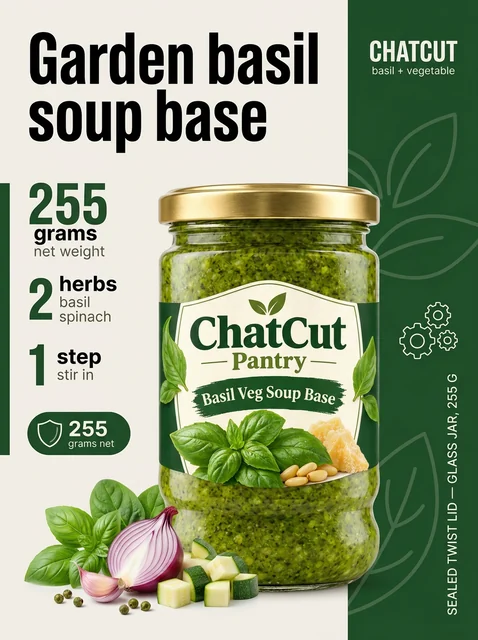
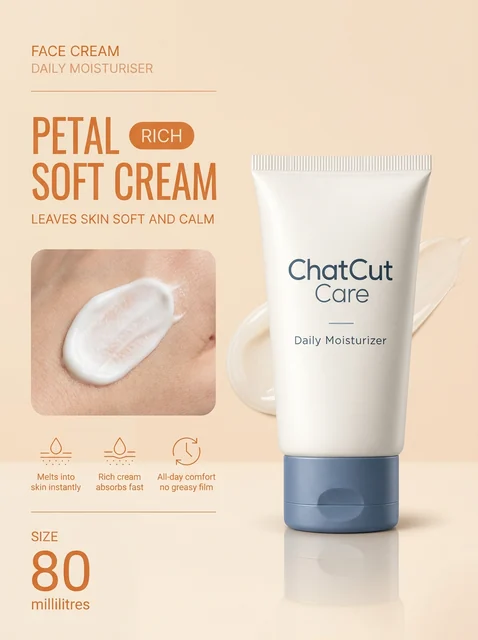
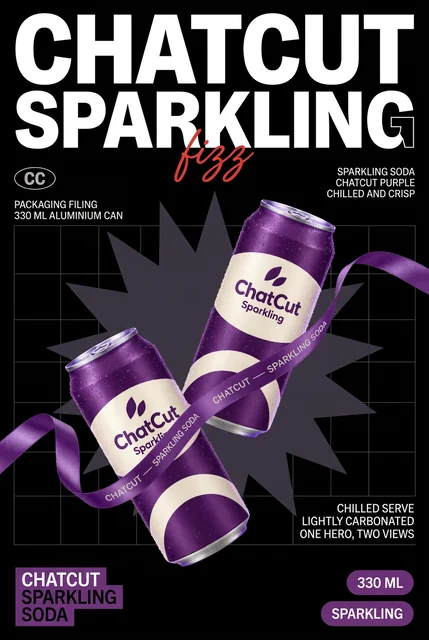
Product Images & Posters
View all 10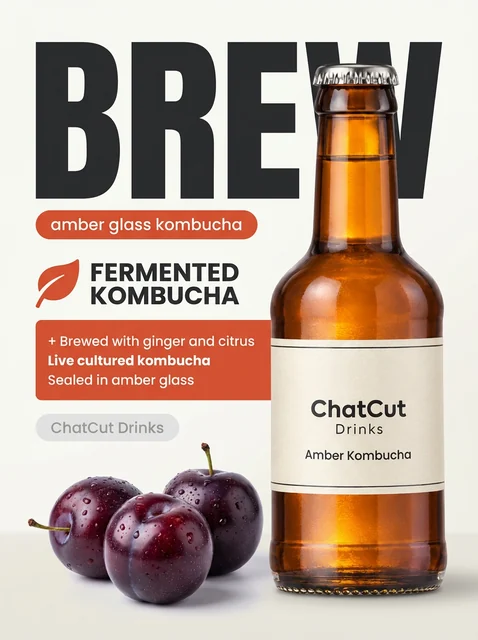
Product Photos
View all 8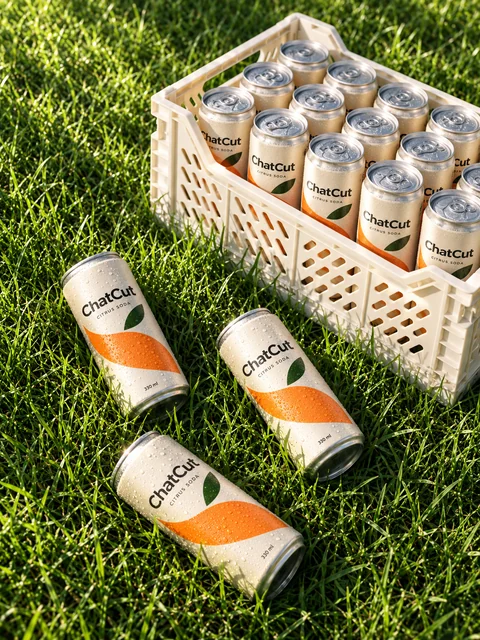
How do I choose a style?
Start with the job the image has to do.
Product photos
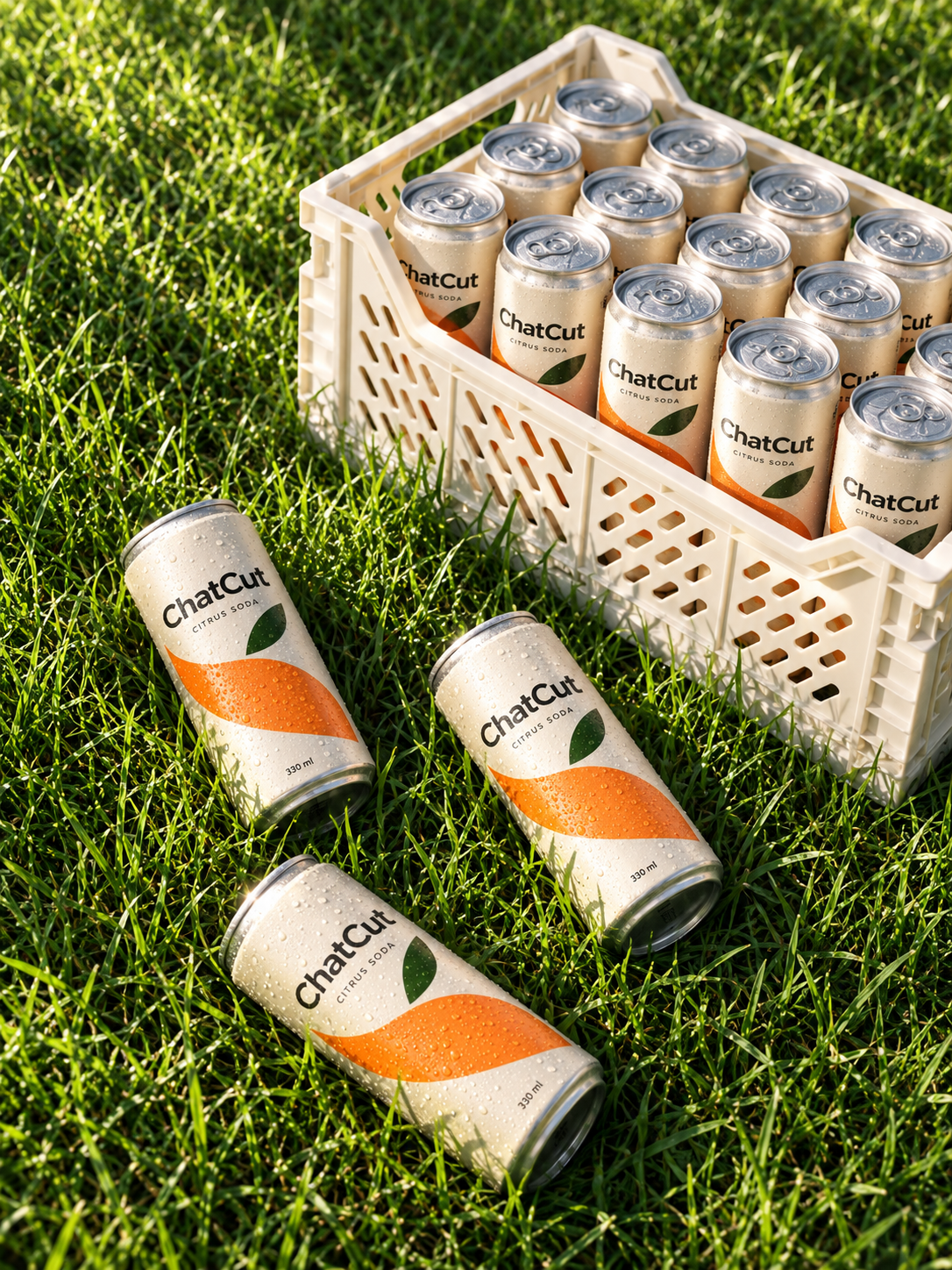
- Real places is the most used. It shows your product in everyday indoor or outdoor settings, for products in use and lifestyle promotion.
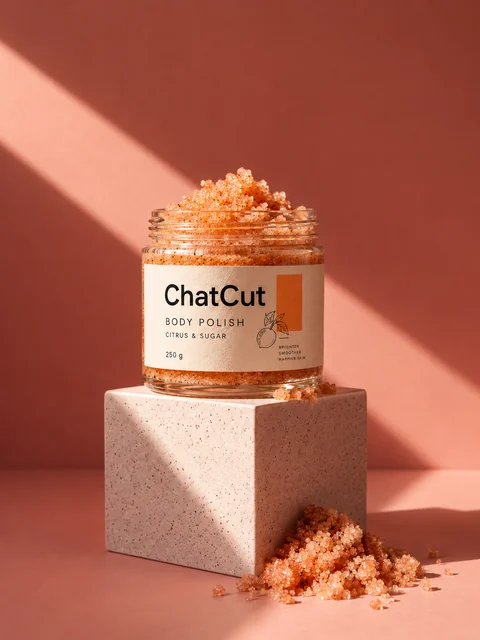
- Studio sets puts the product on display platforms and geometric backdrops with studio lighting, for ecommerce hero images and launches.
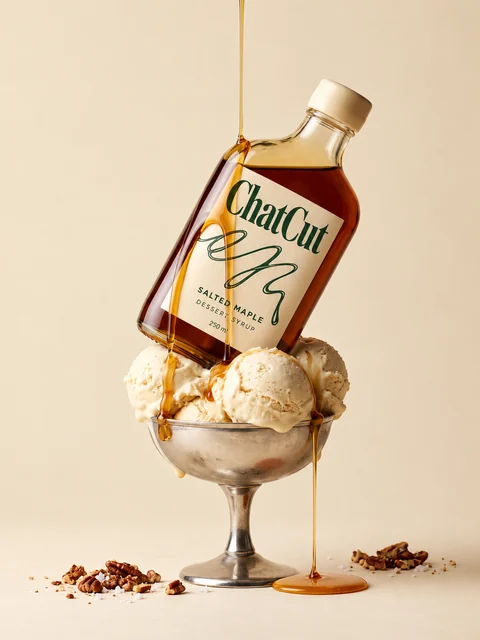
- Food & treats highlights texture, ingredients, and presentation for desserts, snacks, and food products.
- In hand shows hands holding, presenting, or opening the product, for social recommendations and detail shots.
- Splash & float adds liquid splashes, floating products, or suspended ingredients, for drinks and fragrances.
- Light & shadow uses directional light, shadows, and reflections to show off materials, for fragrance, skincare, and gift sets.
- Flat lays are overhead arrangements for product ranges, sets, and packaging.
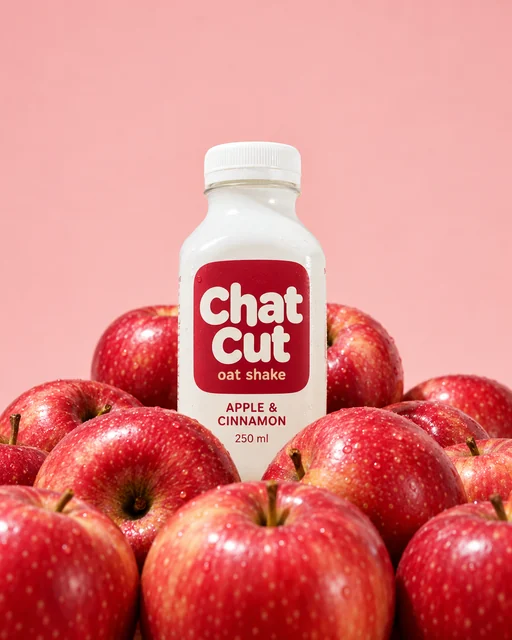
- Fruit & ingredients pairs the product with fruit and raw ingredients, for drinks, food, and skincare.
Marketplace listing posters and images
- Clean Studio is the most used. It is a simple backdrop with clean lighting and a focus on packaging details.
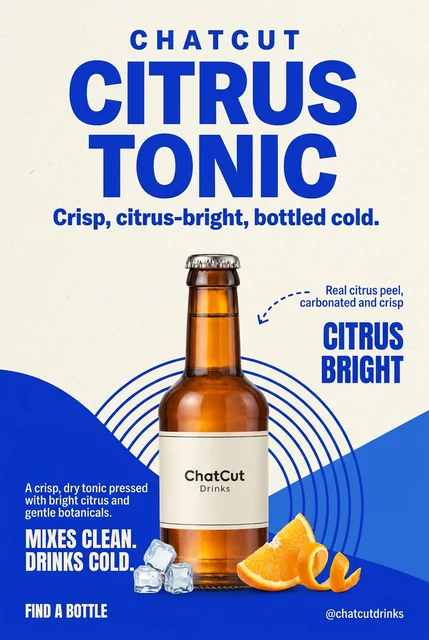
- Color Pop uses bold headlines and vivid contrasting colors, for launches and promotions.
- Juicy Splash combines the product with fruit and liquid splashes, for food and drink flavors.
- Pastel Beauty uses soft pastels and airy typography, for beauty and skincare.
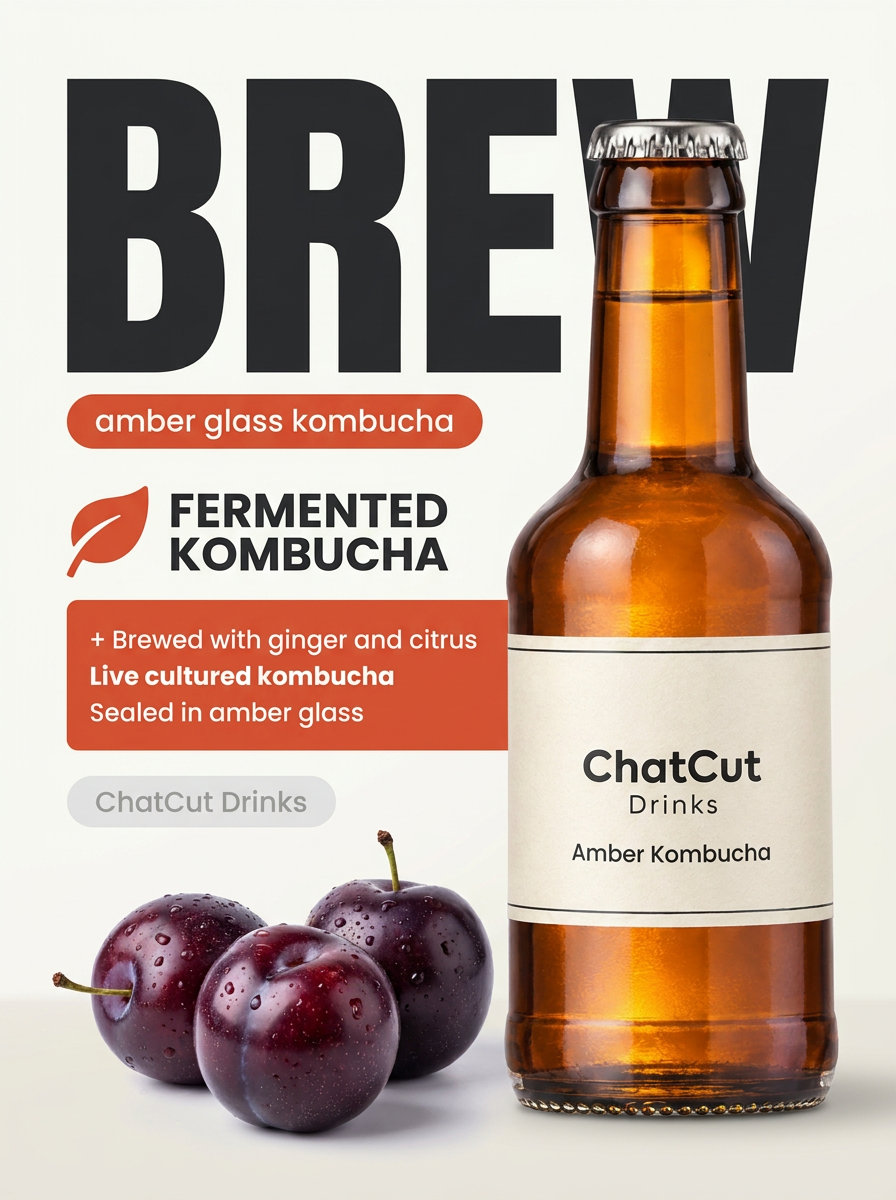
- Dark Premium uses dark backgrounds and focused light, for fragrance, drinks, and tech products.
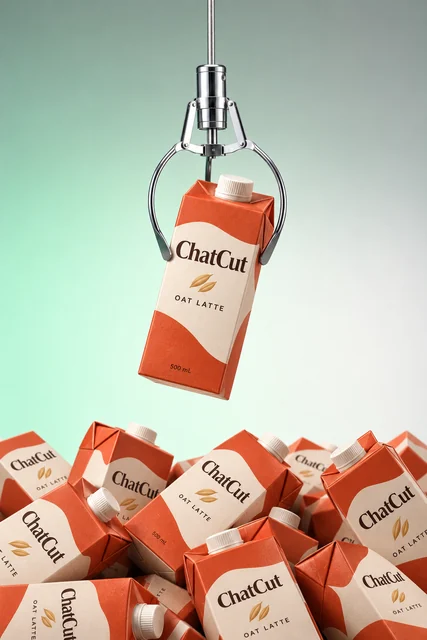
- 3D Surreal uses sculptural forms, exaggerated scale, or floating compositions, for creative campaigns.
- Bold type, Illustrated, Retro print, and Clean editorial posters are built around type: oversized lettering, illustrations with type, paper textures and vintage lettering, or a magazine layout with white space.
What do I need before I start?
- One clear photo of the real product, front shot first. Show the packaging and labels. The listing styles ask for exactly that. A clean photo also helps the result stay close to your product.
- True facts and exact wording. If you want selling points or text in the image, write them in the details field exactly as they should appear. Give only claims that are true for the product.
- A saved Product, if you have one. A Product saved in My Assets keeps its photos and description for reuse. See Characters and Products. If your product is on a web page, see Web Page Assets.
- A Pro plan and credits. ChatCut’s image generation needs an active Pro plan and uses credits. See Credits, Generation Credits, and Free and Pro.
How do I run it?
- Open the style’s page from the gallery above, or open Skills in the editor and choose it.
- Upload your product image.
- Write the product details and any exact text. This is optional for most styles.
- Browse the examples and choose the one closest to the look you want. Listing styles call this Choose a listing style; the others call it Choose an example.
- Check the credit estimate the form shows, then select Create image or Create product images.
- Follow the progress, then review the result before you edit or export it.
If you ask the Agent for the image in a chat instead, a generation confirmation card can appear before the job starts. Review it, then choose Allow. See Generation Confirmations.
Fill in the form
This is the form for Real places, the most used style. Try it here: it opens ChatCut with your choices filled in.
Try the Real places form on its Skill page.
| Field | Options | What it changes |
|---|---|---|
| Product image | Upload or drop files | The product the image is built around |
| Content and exact text | Free text, optional | The setting, the mood, selling points, and any words that must appear exactly |
| Choose an example | A carousel of published examples | The composition and look the image follows |
| Create image | Button, with a credit estimate | Starts the generation |
The six listing styles Clean Studio, Color Pop, Juicy Splash, Pastel Beauty, Dark Premium, and 3D Surreal use these labels instead:
| Field | Options | What it changes |
|---|---|---|
| Product image | Upload or drop files | The real product, with packaging and labels visible |
| Product details and exact copy | Free text | True product facts and the text exactly as it should appear |
| Choose a listing style | A carousel of five variants | The layout and treatment |
| Create product images | Button, with a credit estimate | Starts the generation |
Each style supports its own image shapes, for example 3:4 and 4:5 for Studio sets and Real places also offering 2:3. Fruit & ingredients is 4:5 only, and Flat lays and Food & treats are 3:4. Clean editorial posters also offer 3:2 and 1:1.
Prompts you can copy
Use these in a chat with the Agent when you want to describe the image in your own words.
Make a 4:5 lifestyle photo of my saved product @Ceramic Mug on a sunlit kitchen counter. Keep the logo and colors exactly as in the product photos. No extra text.
Create a 3:4 listing poster for the attached bottle in a clean studio look. Put the headline 'Gentle every day' at the top. Use only the wording I gave you, and do not add claims or prices.
Using the attached photo of my lip balm, make an in-hand shot: a hand holding the tube toward the camera, soft window light, plain background.
What does ChatCut do for me?
- Reads your inputs. It uses your product image, the details and exact text you wrote, and the example you chose.
- Follows the example’s look. The style supplies the composition, props, and lighting, and ChatCut adapts it to your product.
- Keeps your product recognizable. It uses your photo as the reference for the product’s shape and packaging.
- Generates the image. It sends one generation job and shows the credit estimate first.
- Delivers the result. You review it and keep editing in the editor.
What do I get?
You get a finished still image in a shape the style supports, ready to review. You can keep editing it in a project, ask the Agent for changes, or drop it into a video. Each generation is its own job with its own charge. See Credits for how to check the final charge.
What are the limits and tips?
- Each take is a separate paid job. Asking for another version charges again. Check the estimate before you submit.
- Check text and labels. Compare any printed text, logo, and color with your real product before you publish. If a word must be exact, write it in the text field.
- Write only true facts. The Agent does not invent claims, prices, or ingredients. Anything you want in the image, you provide.
- Pick the example, not just the style. Two examples in one style can look quite different, so browse the carousel.
- Use a clean source photo. A sharp, front-facing photo of the real product, with the packaging visible, gives the best base.